Introduction
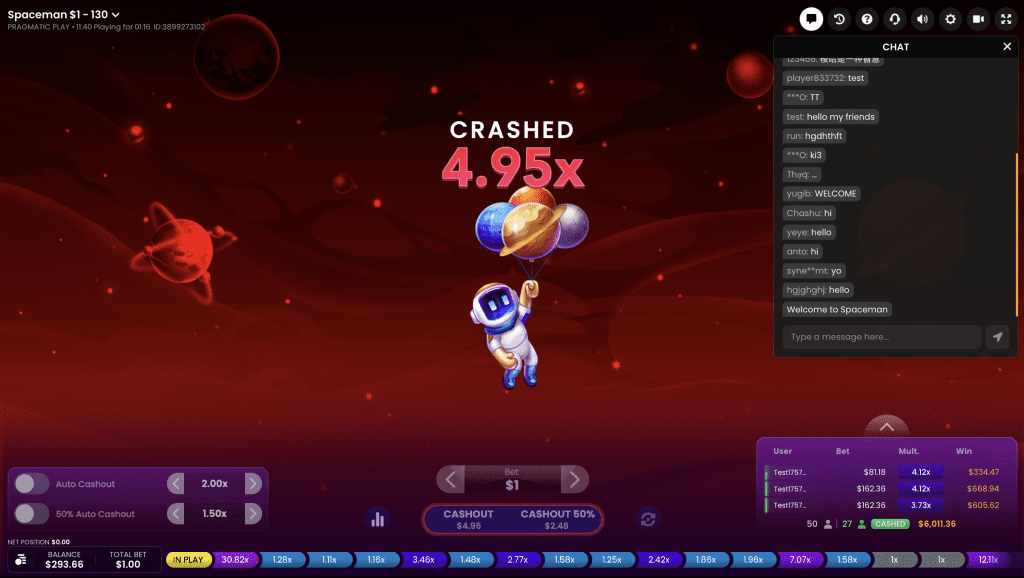
Spaceman is an online multiplayer game of “Crash” type. It consists of a multiplier which grows from 1.00x up to a random, predetermined value, when it crashes.
Your objective is to cash out before the Crash occurs in order to win your bet multiplied by the current multiplier.
Please, kindly note that Spaceman is NOT a game of skill. Your choice has no impact on the game other than deciding when to cash out.
Our cute Spaceman character will join you in your quest.
How to Play
To start playing, select a bet amount and confirm your bet by clicking the “CONFIRM BET” button.
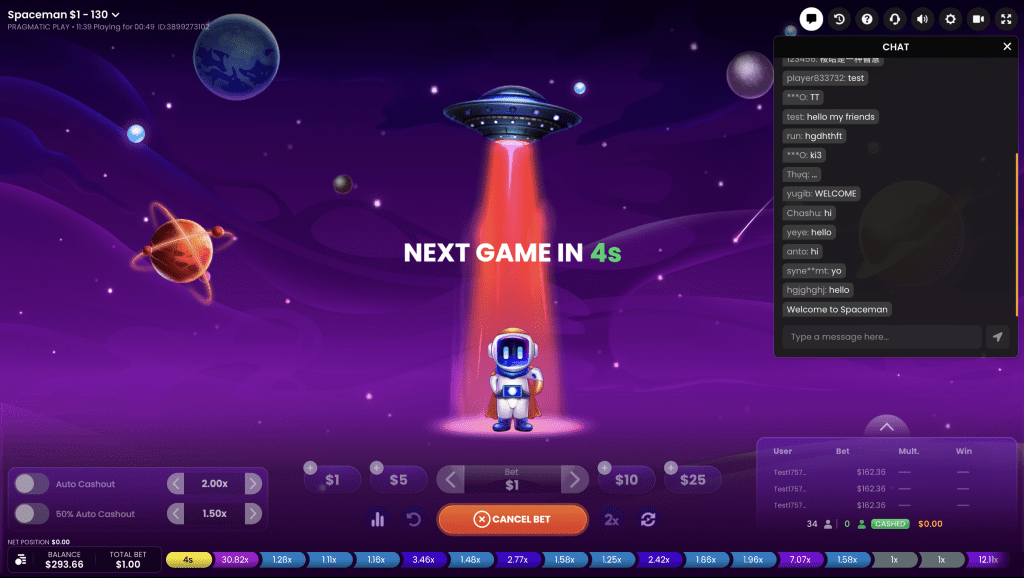
You are allowed to place or modify your bet for the upcoming Round while the messages “NEXT GAME IN ..” or “WAIT FOR NEXT GAME” are displayed on the screen, until the message “BETS CLOSED” is displayed.
The total amount of your bet is displayed in the Bet and Total bet fields.
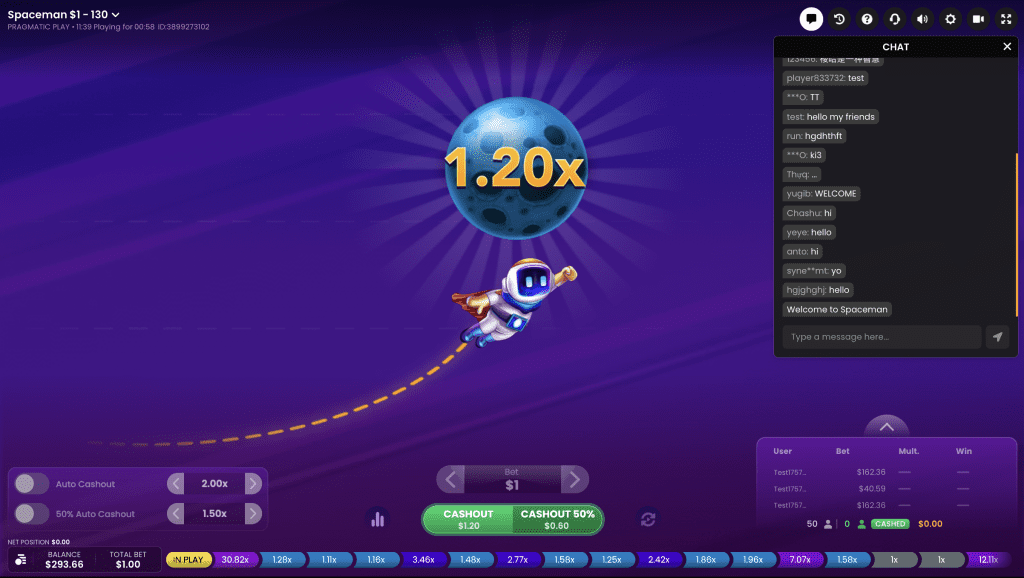
When betting time ends, the multiplier is displayed with the initial value of 1.00x. The multiplier then starts to grow, slower at start but increasingly faster as it goes higher. While it increases, you have the possibility to cash out all at once, or half first and half later.
The later you cash out, the bigger your win, but make sure you do this before the Crash happens. When the Crash occurs, the Game round ends and any amount not cashed out by then is lost.
NOTICE:
- If the Crash occurs at 1.00x, then all bets placed in that Round are automatically lost.
- Multiplier value of 5000x is automatically paid out upon being hit towards all the bets remaining in the game.
If you manage to cash out before the Crash, you win the slice of bet that you decided to cash out multiplied by the current multiplier. Your win amount will be shown in the winning notification. Please, check thoroughly sections “Cashing out” and “Auto Cashout and 50% Auto Cashout” to learn more about the process of claiming your wins.
Once the Game round is finished, you can start placing bets on the upcoming Round.
Multiplier
The multiplier starts always at 1.00x and goes up to a maximum of 5000x according to predetermined Crash multiplier value.
Note: Depending on whichever of the following two is reached first, the maximum possible payout in this game is 4,999:1 (5000x) or currency equivalent $500,000 and the game continues after the maximum payout is reached.

Placing Bets
When placing a bet, please pay attention to the screen elements below to make sure your bet is placed on time and successfully validated.
Next to the game name you see the Bet Limits, which show the minimum and maximum stakes allowed in this game.
Messages in the game inform you of the game status, the remaining time for placing bets and the status of your bets.
“WAIT FOR NEXT GAME” is displayed when you join the game after the betting time ended for the current Round, or after you cash out fully for the current Round. While watching the current Round as a spectator you can start to prepare your bet for the upcoming Round.

“NEXT GAME IN ..s” is displayed when bets are open for the current Round. The timer goes down each second.
“BETS CLOSED” signals the end of betting time and all betting tools will become disabled.
Your bet is then processed and you receive a “BET ACCEPTED” message confirming that your bet has been accepted, or “BET REJECTED”. For more information on the latter, check the “Game Inconveniences” section of this guide.
A “LOW BALANCE” message means that your balance is too low to cover the minimum bet amount allowed in the game. You need to top up your balance to be able to place bets.
A “GAME CANCELLED” message is displayed if the Game round is cancelled due to unforeseen circumstances and immediate resolution is not possible. For more information on this, please refer to the “Game Inconveniences” section of this guide.
 The Quick bets option allows you to top up the value of your current bet faster. Four Quick bet tiles are available and by click on them, the amount they display is added to your total bet. Only Quick bets that can be used with your current Balance are enabled.
 Every click on the Double button doubles your current bet.
 A click on the Undo button removes the most recent change you made to your bet in the current Round. Repeatedly clicking the undo button removes changes one by one, with the most recent change removed first.
All the options above are available only during the betting time. Once the bets are closed, you are not be able to undo or change your bets.
The Balance indicator shows your available funds and your currency. It is always displayed in the bottom of the game window on desktop and mobile devices.
Please make sure that your balance is sufficient to cover your bets before you start playing.
If your balance is not updated after placing bets or after you see a winning message, please try refreshing your game window in the browser or click the F5 key on your keyboard.
 The Cashier button (if applicable) located next to your Balance on desktop opens the Cashier window for deposits and withdrawals. On mobile devices the Cashier button is located inside the game Menu.
The Total Bet indicator shows the current total of all bets placed on the current Game round. It is always displayed at the bottom of the game window.
The Game ID Number shows the unique identifier of any game – the current Game ID Number. It is located next to the game name. The time indicator shows your current local time.
If you have any questions and wish to contact Customer Support, you should always note down (or take a screenshot of) the Game ID Number.
Cashing out
If your bet is accepted, then you can participate in the current Round and you are able to cash out. For this you have the option to “CASHOUT” fully, or to “CASHOUT 50%” .
Spaceman is a realtime game, for which reason actions with “CASHOUT” and “CASHOUT 50%” buttons are subject to delays depending on your Internet connection, usually around 100-200ms.
When you click either “CASHOUT” or “CASHOUT 50%“, you trigger a payout request, which is further settled at the value of an ACTUAL MULTIPLIER by the time it is processed by the game server, providing there is no Crash.
“AUTO CASHOUT” and “50% AUTO CASHOUT” described in the next section “Auto Cashout and 50% Auto Cashout” work quite opposite, paying out instantly at the defined multiplier value including Crash multiplier.
“CASHOUT” means you will take the win for all your bet that is still in the game. The current possible win amount is displayed on the button and changes as the multiplier goes higher. If you click on this button before the Crash, you will trigger confirmation process from the game server and your final winning amount will be settled according to the actual multiplier by the time your request was validated.
“CASHOUT 50%” means you can secure the win for half of your bet and can continue playing with the remaining half to cash it out later at a higher multiplier. If you click on this button before the Crash, you will trigger confirmation process from the game server and your final winning amount will be settled according to the actual multiplier by the time your request was validated. The bet field then updates to the new value. To cash out the second half you need to click the “CASHOUT” button before the Crash.


Auto Cashout and 50% Auto Cashout
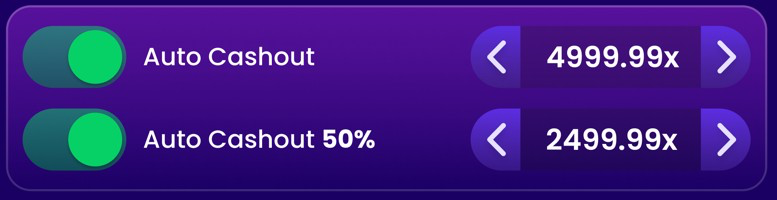
You activate “AUTO CASHOUT” and/or “50% AUTO CASHOUT” by switching them ON during the betting time of the game.
The minimum value to set is 1.01x, the maximum is 4999.99x, because there is no Crash at 5000.00x as it results in auto payout towards all bets remaining in the game.
NOTE: Crash multiplier is only payable when incorporated into “AUTO CASHOUT” or “50% AUTO CASHOUT”.
When both auto cashouts turned on, they have the following dependency: “50% AUTO CASHOUT” must be less than “AUTO CASHOUT”, so it changes accordingly when “AUTO CASHOUT” is adjusted and disables when “AUTO CASHOUT” equals to 1.01x.
After your bets are accepted, if these options are active, then the payout is processed based on the game result and “AUTO CASHOUT”/ “50% AUTO CASHOUT” predefined values.
Once the Round starts you can no longer change these settings, but if you change your mind during the game, you can still use the CASHOUT / CASHOUT 50% buttons to manually cash out at smaller values.
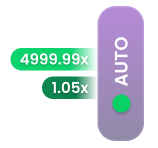
When you play on mobile, Auto cashout turns to a scaled down view after your bet is accepted.
Last Results
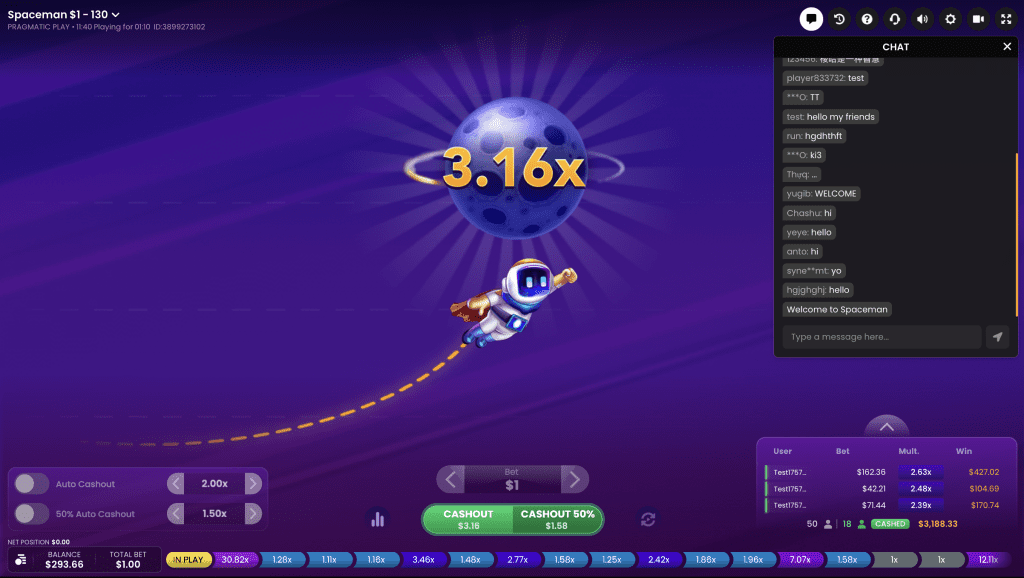
The Crash values from the most recent Rounds are displayed at the bottom of the screen. Each Round featuring in Last results has three general states:
- Countdown (betting time)
- In Play (from Bets Closed until the end of Game round)
- Specifically coloured Result displaying the Crash multiplier

Leaderboard
The Leaderboard is a dynamically updated list of players who placed bets during the current Game round, their bet amounts, cashed sums, relevant multipliers and winning amounts. Essentially informative in nature.
CASHOUT/AUTO CASHOUT and CASHOUT 50%/50% AUTO CASHOUT operations go with relevant indicators. Half-filled indicators stand for 50% cashouts, and filled indicators stand for full cashouts.
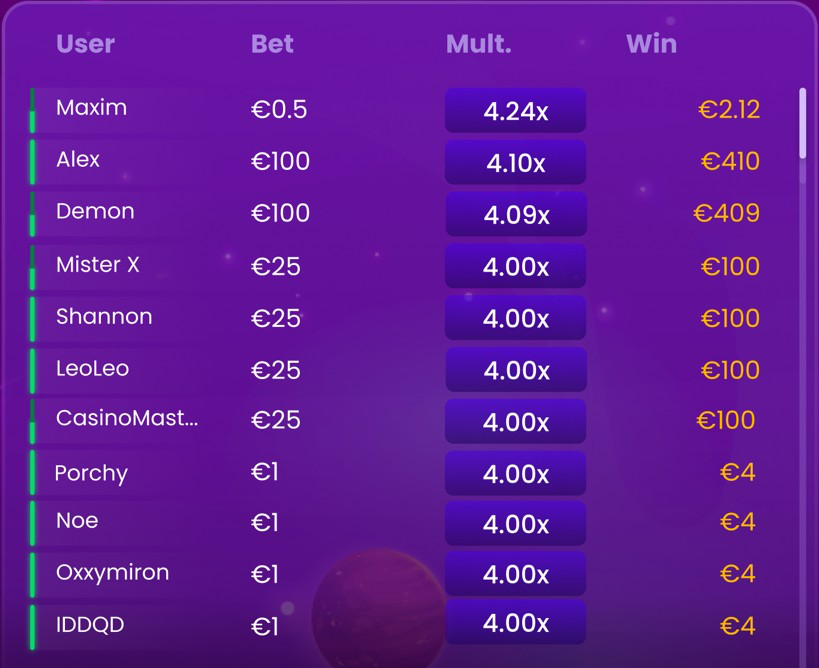
The summary of the leaderboard shows the total number of active players for the current Game round, the total number of players who cashed out and the total amount of their wins in EUR or currency equivalent. Essentially informative in nature.

Statistics
 Open the Statistics by click on the Statistics button.
The LAST RESULTS panel show the values of the most recent Crash multipliers. You can choose to see up to 500 last results by changing the number of Rounds from the stepper.
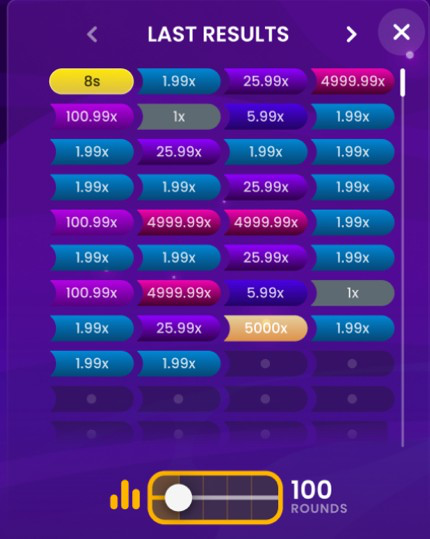
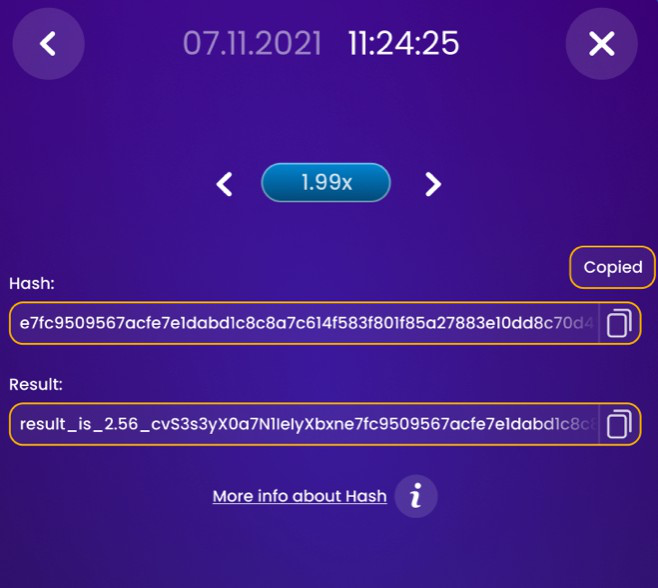
By clicking a result tile, you can see more details about that result:
- Timestamp of the Round;
- Hash string: this is a hash sent before the Round start. You can use it to verify that the result of the Round is fair;
- Result string: a string containing the result in it. This is sent at the end of the Round. By hashing this string with SHA256 you will obtain the hash string above, confirming that the Crash result has not been altered during the Round.
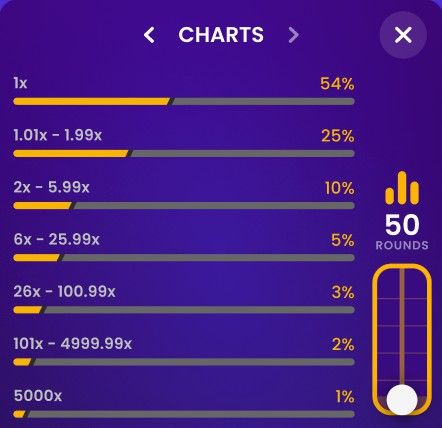
The CHARTS panel shows the distribution of results per ranges. You can change the number of Rounds from which the charts are generated by using the stepper.
Navigation Controls
 The Lobby (All Games) button (if applicable) can be clicked at any time from any game. It allows you to easily change game, select any other live game or simply leave the game. You will not be removed from your current game until you have selected the new game you wish to join, so the Lobby can be used to browse other games while remaining at the current one. Once on the lobby page, please click the Return to Game button in order to exit the lobby and return to your open game.
 Clicking the Chat button opens the chat window so you can send messages to other players.
 If you need to speak with our Live Support team, please select the corresponding chat room by clicking the Support button and you will be assisted in a private chat.
Chat messages are monitored by dedicated personnel at all times. Any chat messages may be deleted, and your chat feature may be blocked if you use inappropriate or rude language with other players in the game or flood the chat with unnecessary messages.
 Clicking the Volume Control button opens a slider which lets you change the sound volume in your game. Clicking the Volume control button mutes the game – it then turns into a “Muted” icon.
 By default, the game is opened with muted audio. Please click the Muted button to unmute the game. The icon then turns into the Volume Control button.
 Clicking the History button opens a window showing details of your activity in our Casino. By default, it is opened on your history for Today. You can also see your history from previous days by selecting the Older tab.
Simply select a Game round from the list to see details of it, including all your bets. The details of your Game round history are shown in the History window and are split into 2 parts: Game round information and bets information.
 Clicking the Game Help button opens the Help window you are in right now.
 Clicking the Settings button opens a Settings window allowing you to set your desired preferences. In the General tab the following options are available:
- Animation on/off.
- Manage game effects.
- Language – change the interface language.
 By clicking Animation button, you can change the mode to No Animation mode with most elements being static. On mobile devices this functionality is in the Settings inside the Menu.
 Clicking the Full Screen button launches Full Screen mode and the game and/or Lobby will fill the entire screen. To exit this mode, either click the button again or press the “Esc” key on your keyboard.
Game Inconveniences
You are personally responsible for the correct placement of your bets.
In the event of any technical malfunction, the Game will be cancelled. All valid cashouts will stand and all uncashed money will be refunded.
In extreme cases, including but not limited to system and/or software damage, all bets on cancelled Round will be subject to refund.
If “CASHOUT“/“AUTO CASHOUT“ or “CASHOUT 50%“/“50% AUTO CASHOUT“ action cannot be
processed or for some reason it was declined by game server, you will receive notification “CASHOUT FAILED“.
A bet may be rejected by the system after the betting time is finished due to not being placed in time, not meeting the minimum or maximum requirements, or to other transaction issues.
If the game ends with what you consider to be a wrong result, or in the event of any other irregularities, please contact Casino Time Customer Support providing the Game name.
Disconnection Policy
Pragmatic Play Casino services are provided over the Internet, from which you may be disconnected at times. This poses potential problems to the game flow and your user experience.
In order to minimize the impact of unexpected disconnections, when you lose connectivity to the game server, a reconnect message will be displayed on the screen.
As soon as you get disconnected, the following error handling rules apply:
- Your bet will be subject to Cancellation if disconnection detected before ”BETS CLOSED”;
- Your bet will be subject to Refund in case your bet has been confirmed during ”BETS CLOSED” but you got disconnected before the game started or current multiplier value is 1x. In both cases 1x should not be the Crash multiplier – otherwise bet will be settled as a loss;
- Your bet will be subject to Forced cashout as soon as you get disconnected during the game, providing multiplier value is at least 1.01x and there is no Crash.
- Disconnection policy doesn’t apply with Auto Cashout enabled, except for cases with only 50% Auto Cashout enabled;
After being disconnected, please check your winnings in the History window. Winnings credited through Forced cashout have Cashout (disconnection) bet type and refunds have Refund (disconnection) bet type.
If you have any doubts regarding game outcomes, please contact Live Support within the game or Casino Customer Support, providing them with details of the game in question including the Game name.