For quicker and easier access to Casino Time without the need for typing in a website address or entering an email and password, players can add a shortcut to their home screen as well as enable Face ID. These features are available for both iPhone and Android devices by completing the following steps:
FOR IPHONE
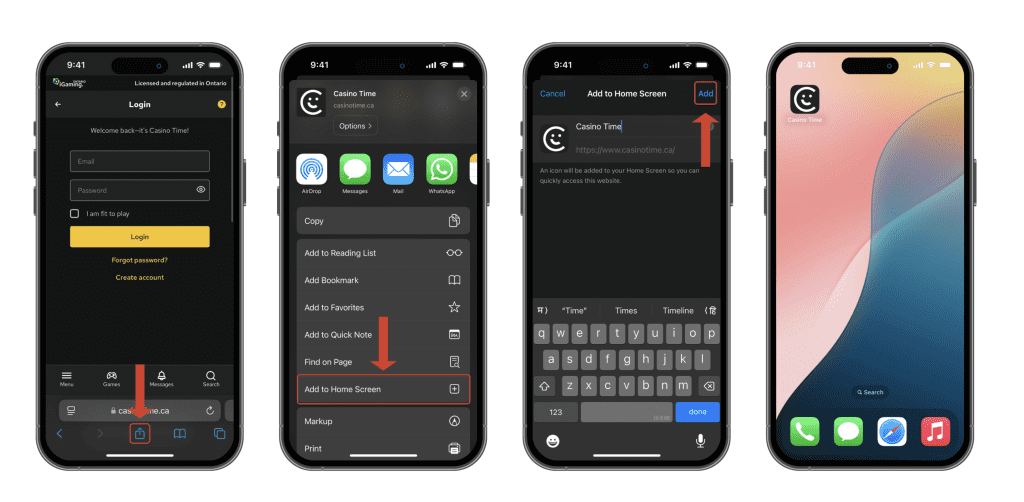
Adding a Shortcut to the Home Screen:
- Open Safari and navigate to the Casino Time website.
- Tap the “Share” icon (a square with an arrow pointing upwards) located at the bottom of the screen.
- Scroll down and select “Add to Home Screen”.
- Enter the desired name for the shortcut (it will appear under the icon on your home screen).
- Tap “Add” in the upper right corner.
- The shortcut will now appear as an app icon on your home screen.
Enabling Face ID or Touch ID for Faster Login:
- Go to “Settings” app on your iPhone.
- Scroll down and tap on “Face ID and Passcode” or “Touch ID and Passcode” (Depending on your iPhone).
- Enter your passcode if prompted.
- Toggle on “Use Face ID for:” or “Use Touch ID for:” and make sure Safari Autofill is enabled.
- When logging into Casino Time on your browser, you will be prompted to save password for faster access in the future.
- Confirm to use Face ID or Touch ID, and next time you log in, the device will use Face ID/ Touch ID to autofill your login details.
- Alternately, you can also use your device passcode to fill the information.
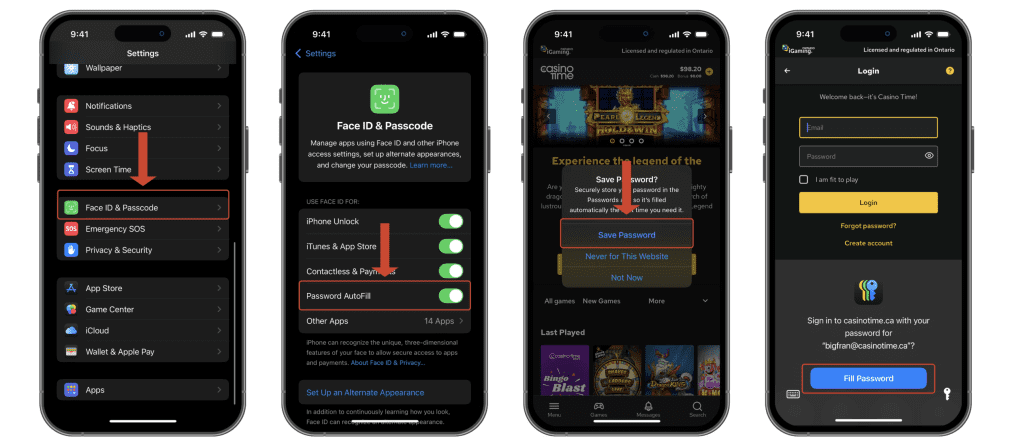
Please make sure Autofill Passwords from “Passwords” is turned on to use this feature (Settings > General > AutoFill & Passwords > Turn on Passwords toggle).
FOR ANDROID
Adding a Shortcut to the Home Screen:
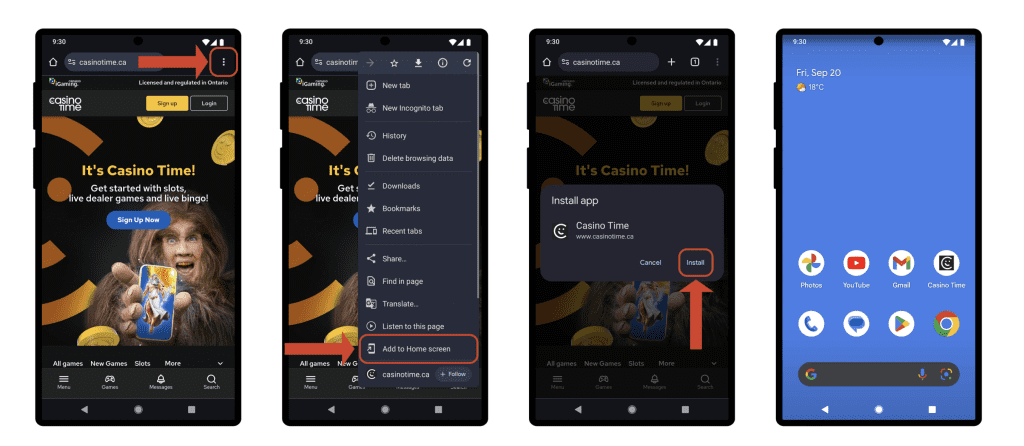
- Open Chrome and navigate to the Casino Time website.
- Tap the three dots in the upper right corner of the browser.
- Select “Add to Home Screen”.
- Click “Install”
- Once installed, drag the icon to where you want it on your home screen.
- The shortcut will now appear as an app icon on your home screen.
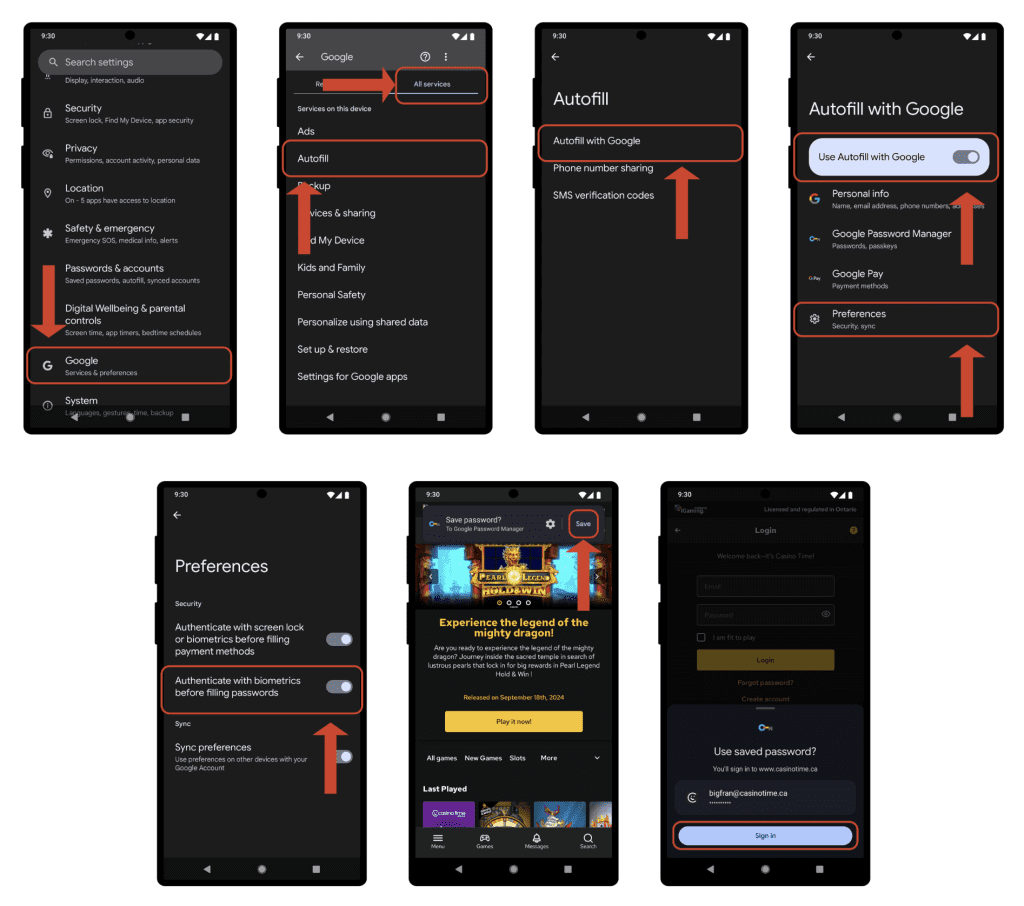
Enabling Biometrics Authentication for Faster Login:
- Go to “Settings” on your Android device.
- Go to Google > All Services > Autofill > Autofill with Google>Preferences
- Use Fingerprint/Biometric if prompted
- Toggle on “Authenticate with biometrics before filling passwords”
- When logging into Casino Time on your browser, you will be prompted to save password for faster access in the future.
- Confirm to use saved password, and next time you log in, the device will use biometrics to autofill your login details.
- Alternately, you can also use your device passcode to fill the information.